
Game day checklist
Set up the camera, pair it, record or stream the game and get the video onto YouTube — all on one sheet. It assumes the phone is already approved and has a spot name and PIN.
Before you leave
- Phone charged, plus a charger or power bank and cable — a full game drains a battery.
- Enough free storage on the phone: a game at the highest quality takes about 5–6 GB. Check the number on the phone's waiting screen.
- Internet at the field. Wi‑Fi or a hotspot is best. Mobile data works, but a live stream uses about 1.8 GB per hour.
- The camera's spot name and PIN — you type the PIN on the website, never on the phone.
- Tripod or mount, and the laptop, tablet or phone you'll run the scoreboard from, signed in to Sports Team Viewer.
At the field: scoreboard and pairingWebsite
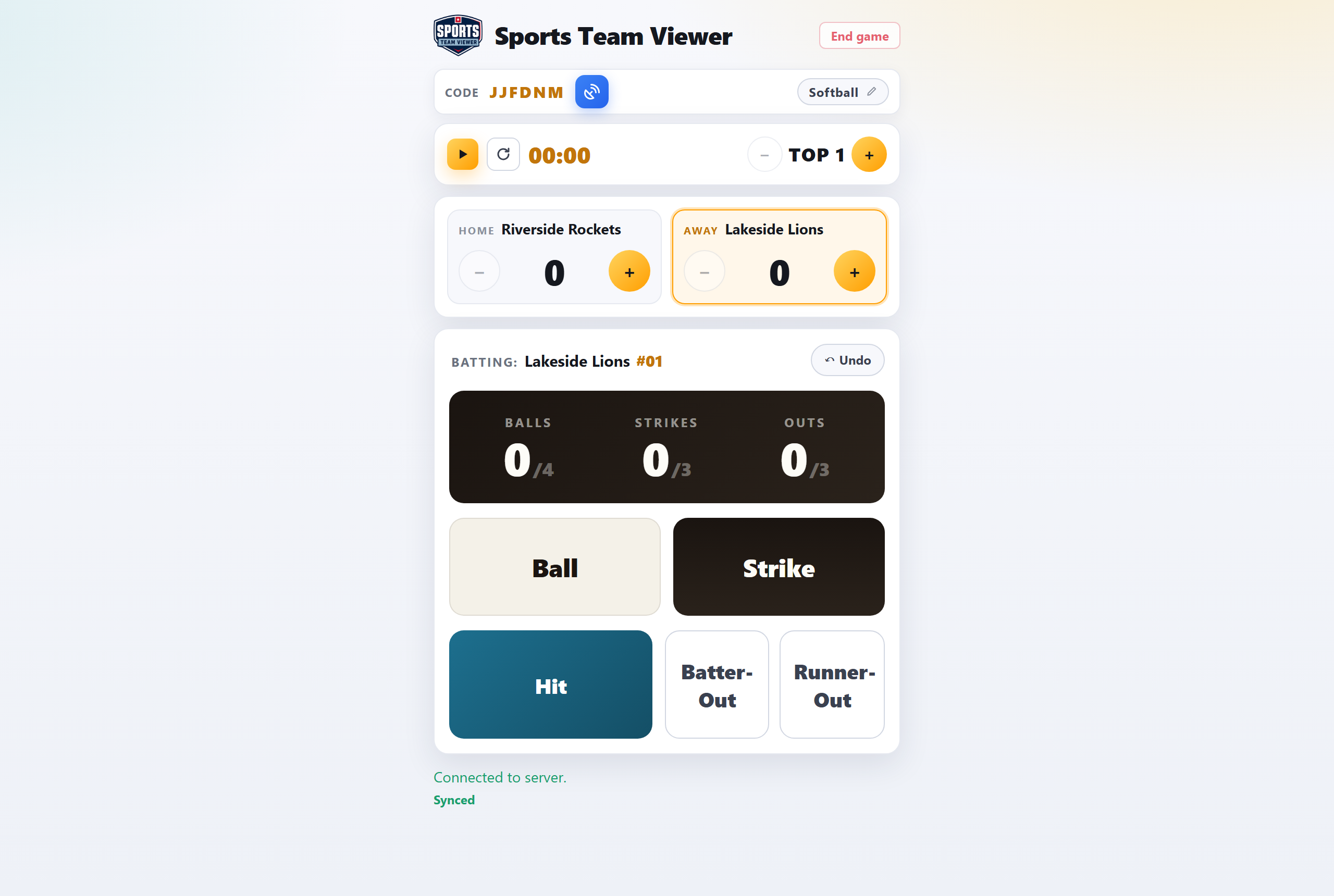
- Create the game. Sign in, tap + Create game, pick the sport and enter both teams (and logos if you have them).
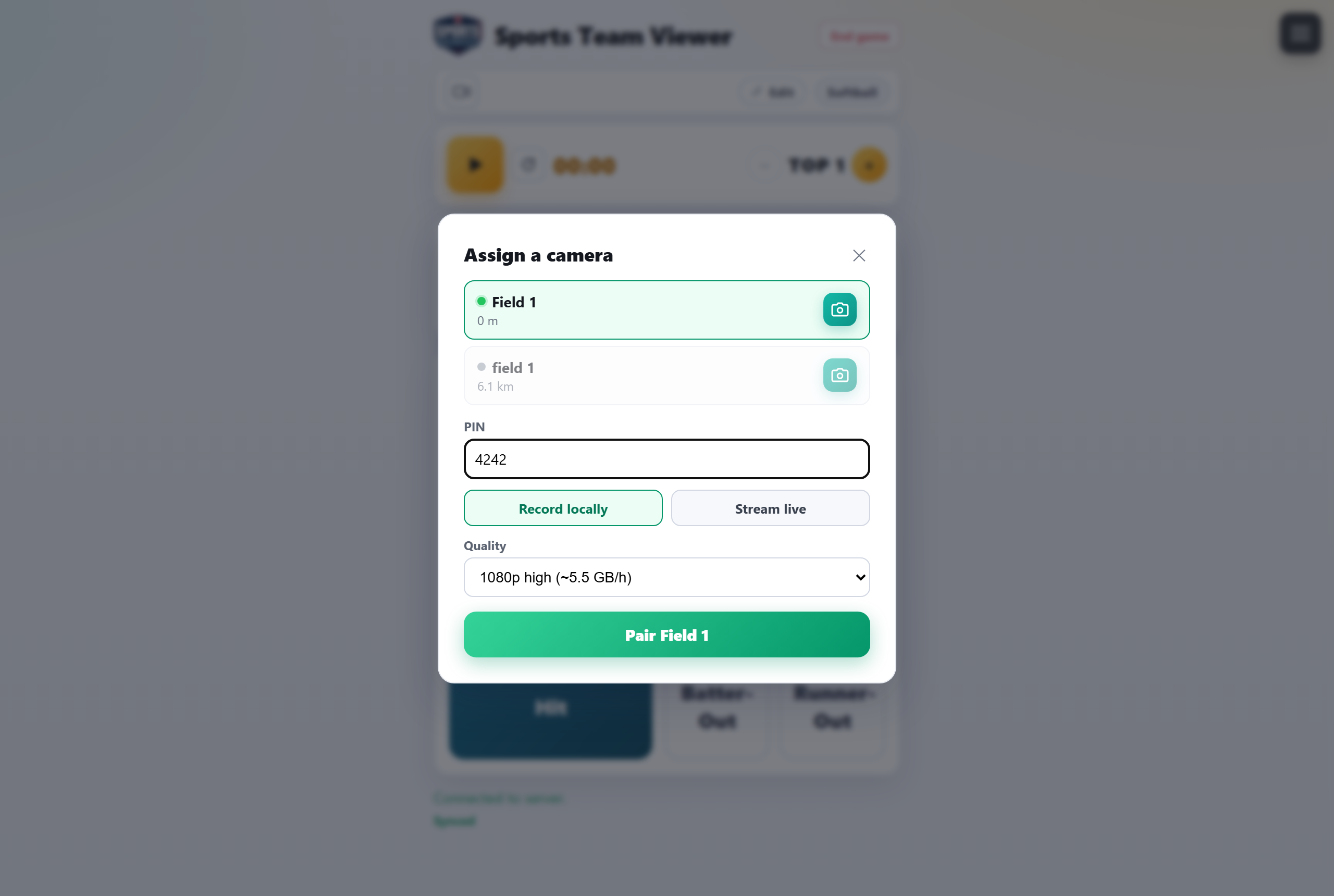
- Assign the camera. On the game's control screen tap the video‑camera icon. Nearby waiting cameras are listed closest first; a green dot means it's online.
- Enter the PIN and choose the mode. Stream live plus a quality to broadcast on YouTube, or Record locally to only save the video on the phone. Tap the green Pair … button (it names the camera).
- Check the framing. Tap the preview button next to the camera's name to pull a fresh snapshot from it.
- Start the clock (▶). The camera starts recording — and streaming, if you chose that — on its own. Nothing to tap on the phone.
- Share the watch link. On the Games screen the game's YouTube icon opens the live stream — send that link to friends and family.
👧 Under‑18 game? Choose Record locally — we don't encourage public streaming of youth games. See Recording youth & children.
At the field: the cameraPhone
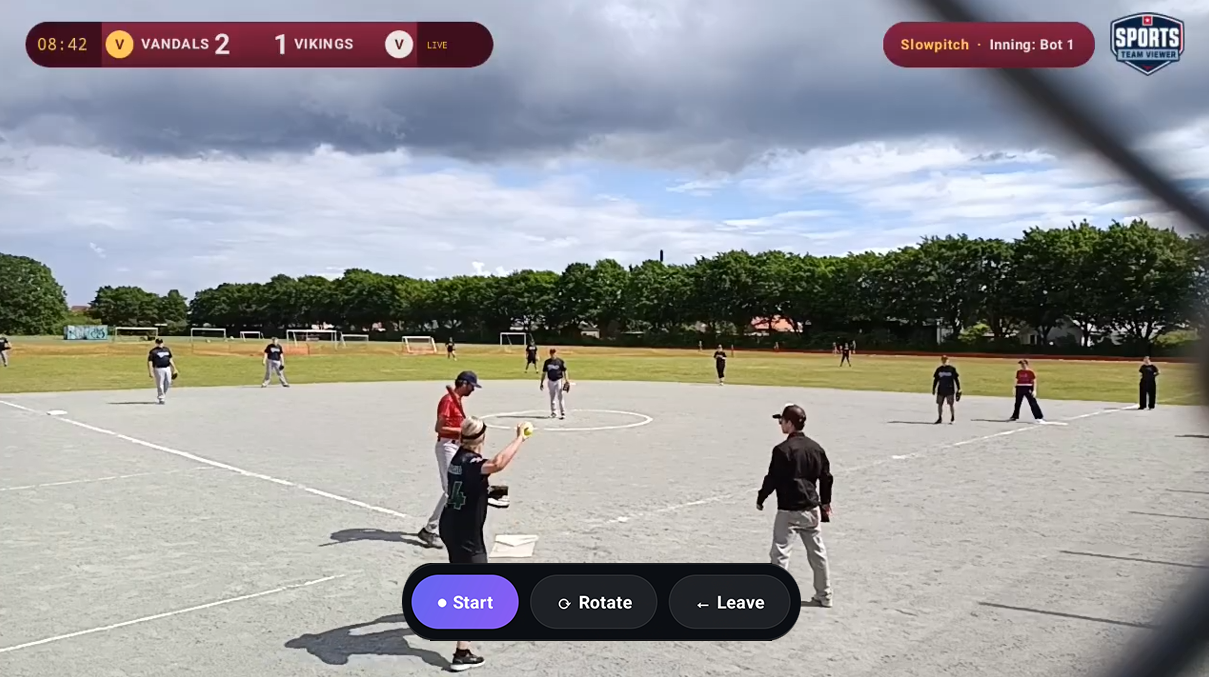
- Mount the phone in landscape with a steady, clear view of the whole field, and plug in power. Keep the sun off the lens.
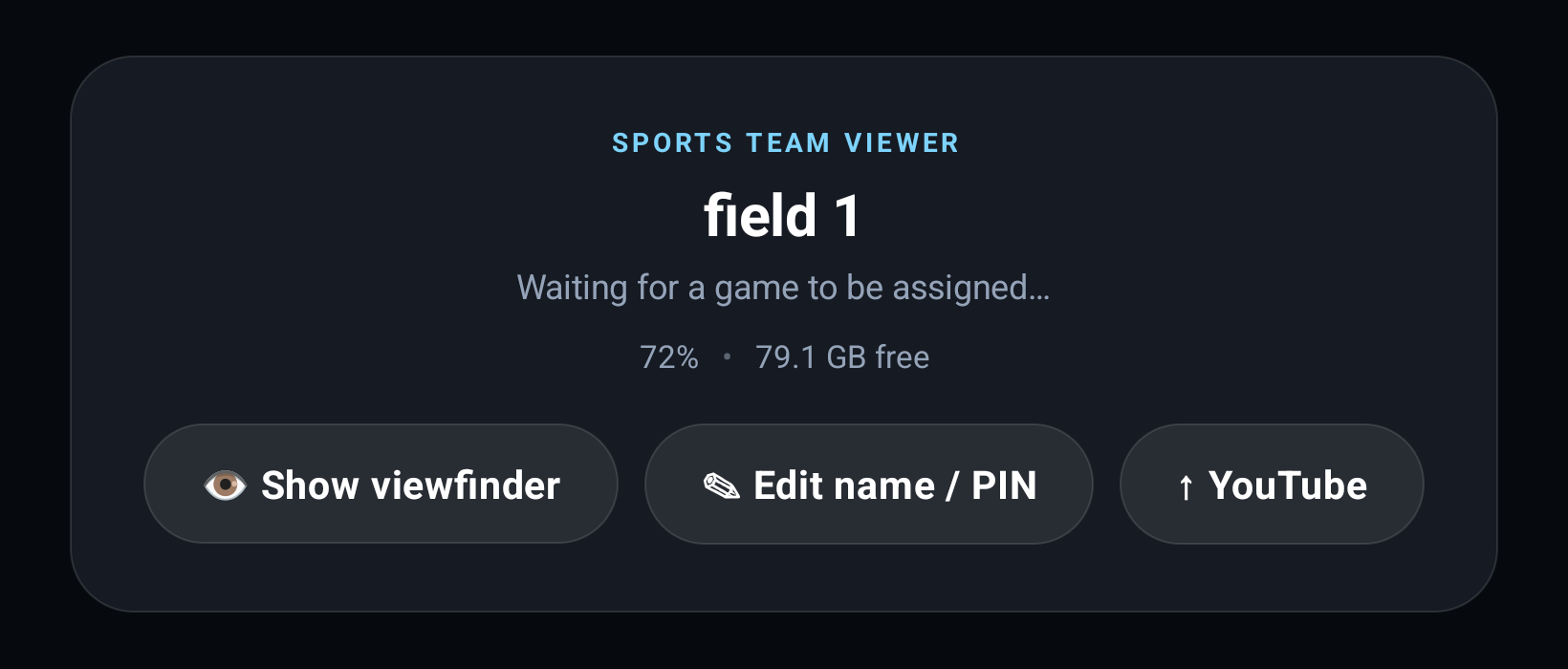
- Open the app. It shows the spot name, “Waiting for a game to be assigned…” and three chips: battery, free storage and network. All three should look fine — a red chip means fix it now.
- Aim it. Tap 👁 Show viewfinder to see the live picture, frame the field, then tap again to hide it.
- Leave it alone. Keep the app open on the screen — don't lock the phone or switch apps. Everything else happens from the website.
During the gameWebsite
- Keep the score, count and clock up to date — changes show on the video within a few seconds.
- The camera's name on the control screen shows its battery and storage. Red means act now: plug it in or free up space.
- Streaming on mobile data? The phone shows a short “this can be costly” notice when it starts. That's expected.
- Need to stop early? Tap End game on the website. The phone's ■ Stop button also works if you're next to it.
After the game
Tap End game on the website and confirm. The camera stops, saves the recording and joins its clips — the game shows Merging: NN% for a few minutes — then goes back to waiting for the next game.
📡 If you streamed
- The video is already on the Sports Team Viewer channel — the stream's own recording, with chapters added automatically. Nothing to upload.
- The watch link on the Games screen now opens the finished video. It's public unless you marked the game as not public.
💾 If you recorded locally
- On the Games screen (My games) tap Send recording to YouTube on the game's card — or Send to YouTube next to the camera's name on the game screen. The button changes to Queued ✓, the game shows Uploading: NN%, and when it's done a YouTube icon appears on the card.
- The phone must be on Wi‑Fi (a hotspot counts), plugged in and left unlocked with the app open until the upload finishes.
- Alternatively, on the phone tap ↑ YouTube and pick the recording.
- Uploads land unlisted: only people with the link can watch. To make it public on the channel, tap the publish icon on the game's card and confirm.
Screenshot coming soon
Packing up: leave the app installed and never “clear data” or “clear cache” on it — that deletes any footage still waiting to be joined or uploaded.
Quick fixes
- Camera not in the list
- Is it powered on, online and on its waiting screen? Only waiting cameras appear — a camera still paired to an earlier game is busy until that game is ended.
- Wrong PIN
- On the phone tap ✎ Edit name / PIN and set a new one; the spot name and location can stay.
- Nothing recorded
- Recording starts when you start the clock on the website — not before. Check the phone shows this game, not the waiting screen.
- Stream didn't go live
- The phone falls back to recording locally, so the game is still saved. Send the recording to YouTube afterwards.
- Network chip is red
- The phone has no internet. Reconnect Wi‑Fi or the hotspot, or turn on mobile data. The scoreboard doesn't need the same network as the phone.
- Phone warns about storage
- Free up space before you start: once old recordings are on YouTube, delete them from the phone's Movies › SportsTeamViewer folder.