
How it works
Sports Team Viewer turns a web browser and a fixed, mounted phone into a live broadcast booth for your team. Each field has a camera already set up on it; you run the scoreboard from any browser and just pick a nearby camera for the game. This guide walks you through it, step by step — no tech know-how needed.
🖨 Just need the day-to-day routine? Print the game day checklist — one page: set up, pair, record, publish.
The two parts
There are two pieces, and they talk to each other over the internet — no cables, nothing to plug in.
The Scoreboard (this website)
Open in any web browser. You create the game, set the teams, and tap to change the score and clock. This is the “control panel.”
The Camera (a fixed-mounted phone)
The Sports Team Viewer app running on an Android phone, mounted at the field. It films the game and burns the live scoreboard straight into the video.
Each camera is set up once, mounted at its field, and then just waits. To use one for a game, you don’t touch the phone at all — from the website you pick the nearest camera and enter its PIN, and it starts filming that game automatically. Change the score on the website and it updates on the video within a couple of seconds.
What you need
- A phone or laptop with a web browser, to run the scoreboard.
- A free Sports Team Viewer account (to create and control games).
- At least one <strong>Sports Team Viewer</strong> camera already set up and mounted at the field (a one-time job — see <em>Setting up a camera</em> below).
- Both the browser and the camera on the internet (any connection — they don’t need to be on the same Wi‑Fi).
- Optional: nothing extra to stream live to YouTube — just a different choice when you assign the camera.
Supported sports
Sports Team Viewer is built around the live count — balls, strikes and outs, or just outs in Baseball5, which has no pitcher — so it’s tuned for bat-and-ball games. Right now you can set up, score, and film:
- Baseball
- Baseball5
- Softball
- Slowpitch
- Soccer
More sports are on the way — we’re adding them over time.
Setting up a camera (once per device)
Do this once, when a new phone is mounted at a field. After that, it just sits there ready — nobody needs to touch it again, game after game.
- Install the app and let it enroll. Open the Sports Team Viewer app on the phone. On first run it shows a short enroll code and waits — nothing to type.
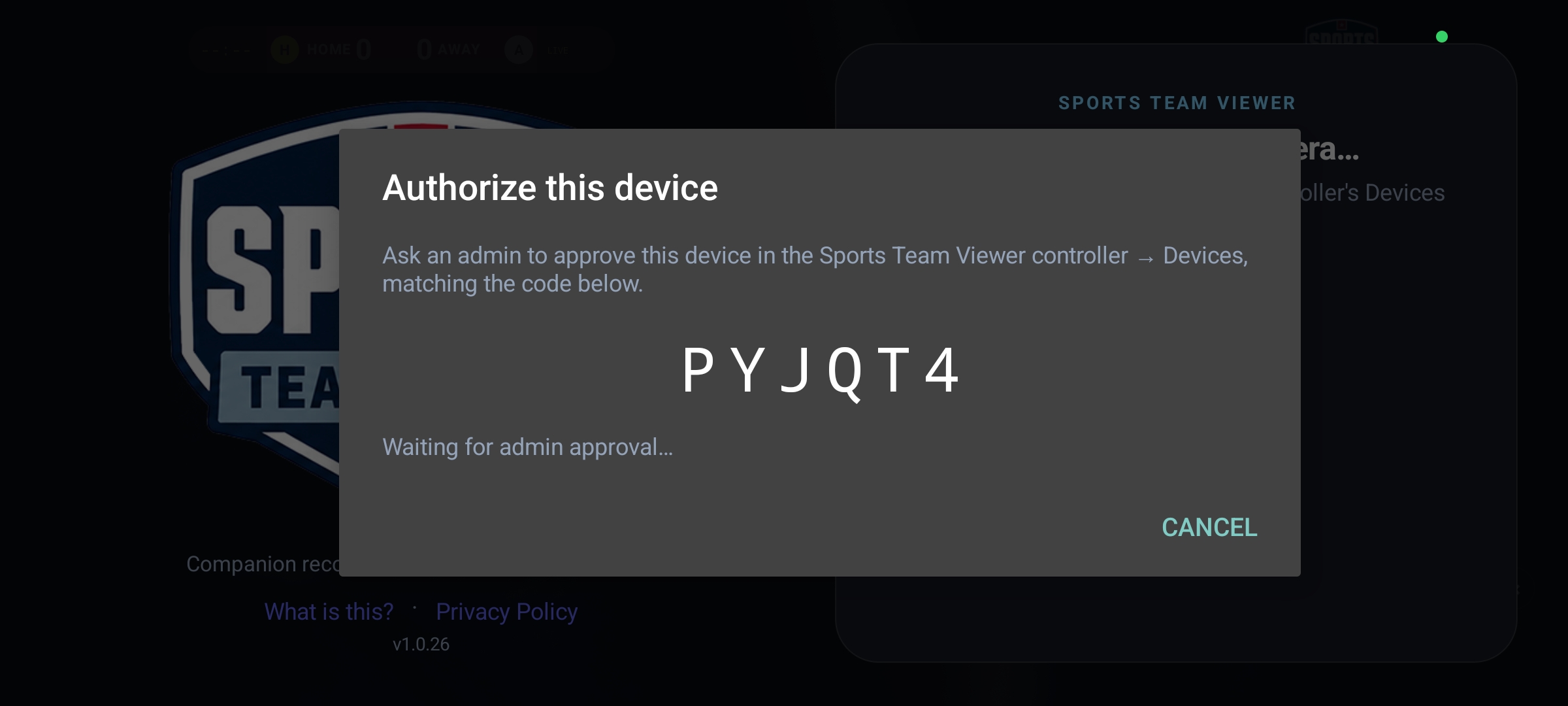
A brand-new phone showing its enroll code while it waits to be approved. - Approve it on the website. An admin opens Devices on the website, matches the code, gives the camera a label (e.g. “Vandals phone 1”), and approves it.

The Devices page — approve a pending camera and give it a label. Taking a while to get approved? Email support@sportsteamviewer.com and we’ll help sort it out.
- Mount it and set its spot. The phone then asks for a spot label and a PIN, and takes a one-time GPS fix of where it’s mounted. Write the PIN down somewhere safe — it’s never shown on the phone again. But if you forget it, just enter a new one.
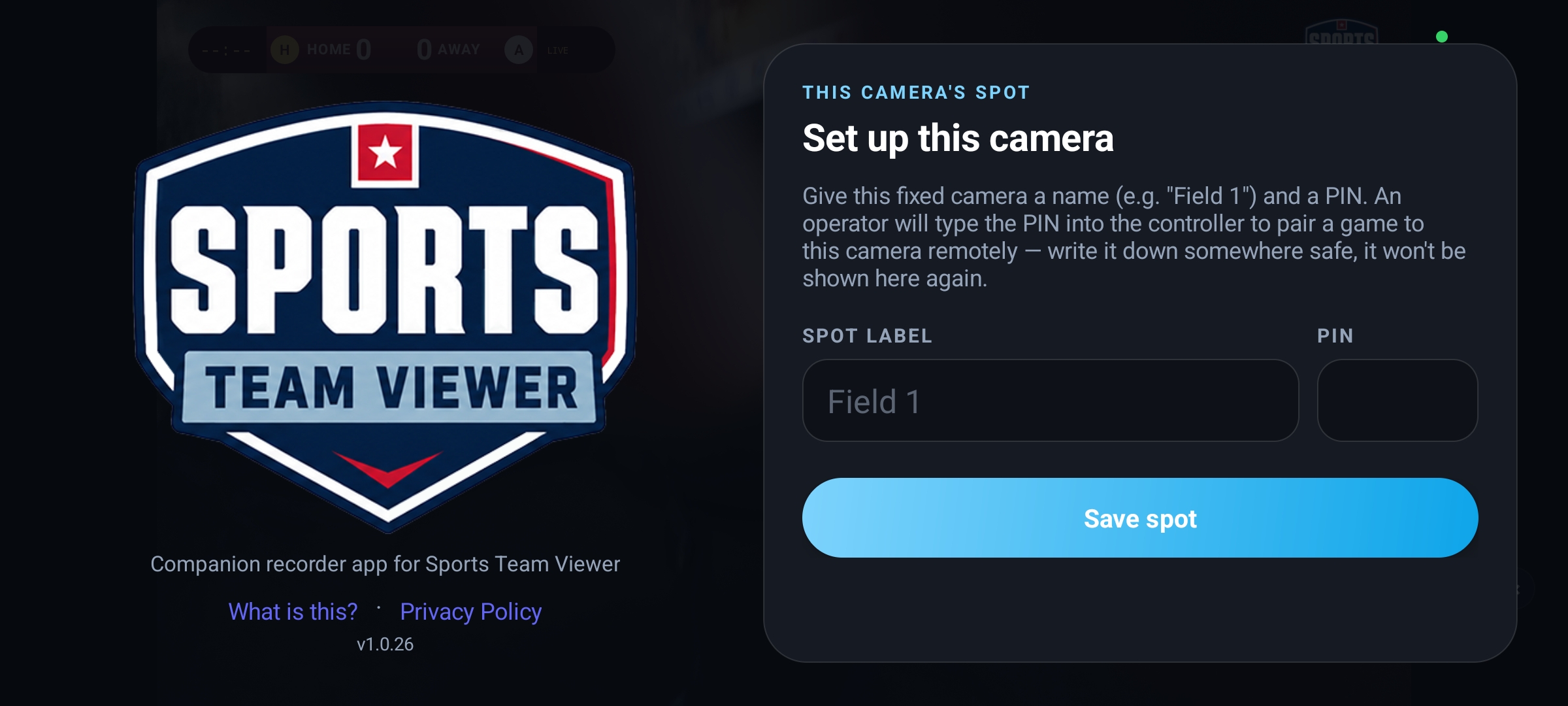
Setting the spot label, PIN, and one-time location fix.
That’s it. The camera now sits on its “Waiting for a game” screen, powered on and connected, until someone assigns it to a game from the website.
1 · Set up the scoreboard
Do this part first, on whichever device you’ll use to run the score during the game.
- Open the website and sign in. Go to sportsteamviewer.com and sign in (or create a free account). You’ll land on the Games screen.

The welcome screen — tap “Go to games” to start. - Create a game. Tap + Create game. The Games screen lists everything that’s live or recently played.
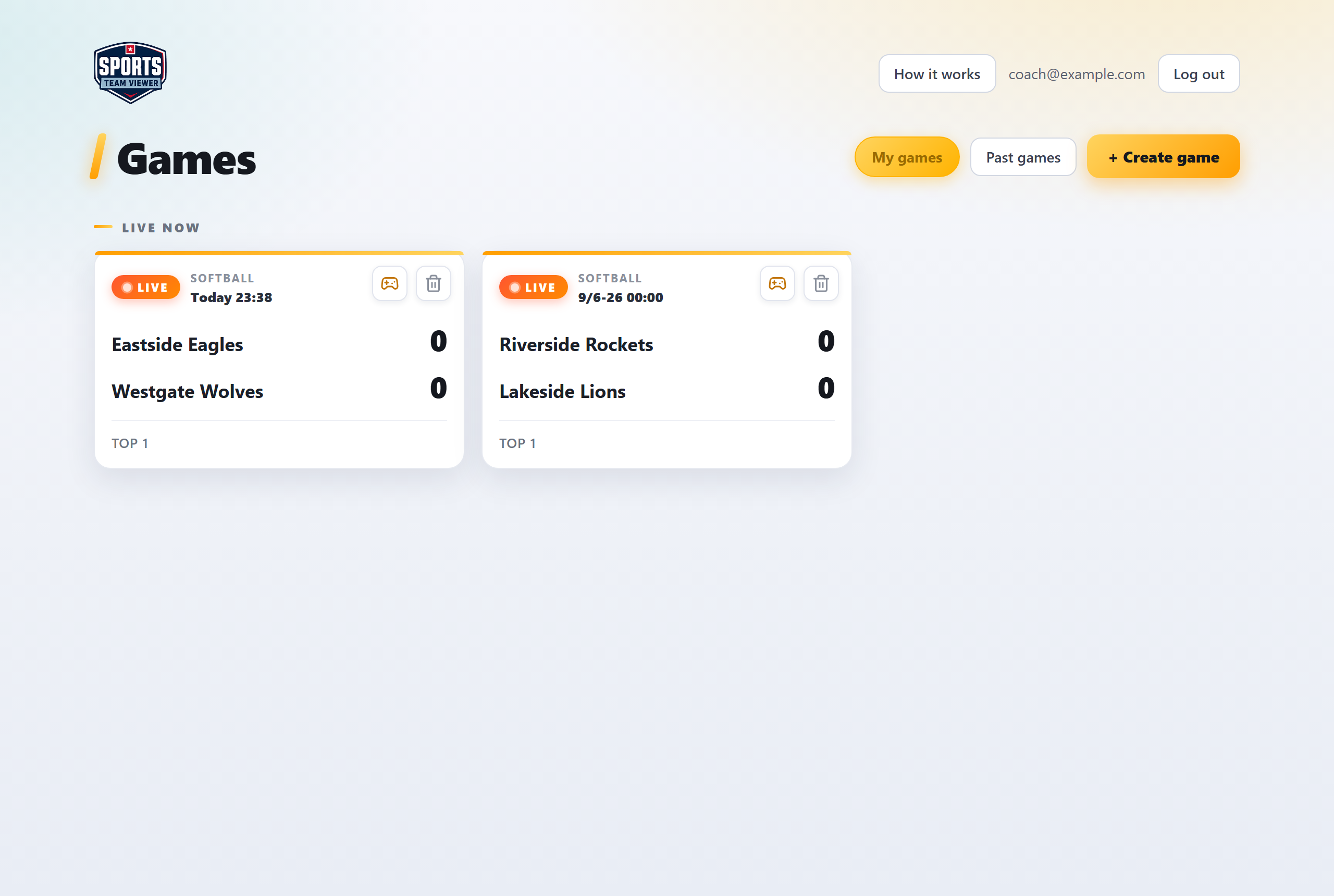
The Games screen, with the “+ Create game” button top-right. - Set the sport and teams. Choose your sport, type the home and away team names, and upload each team’s logo if you have one.
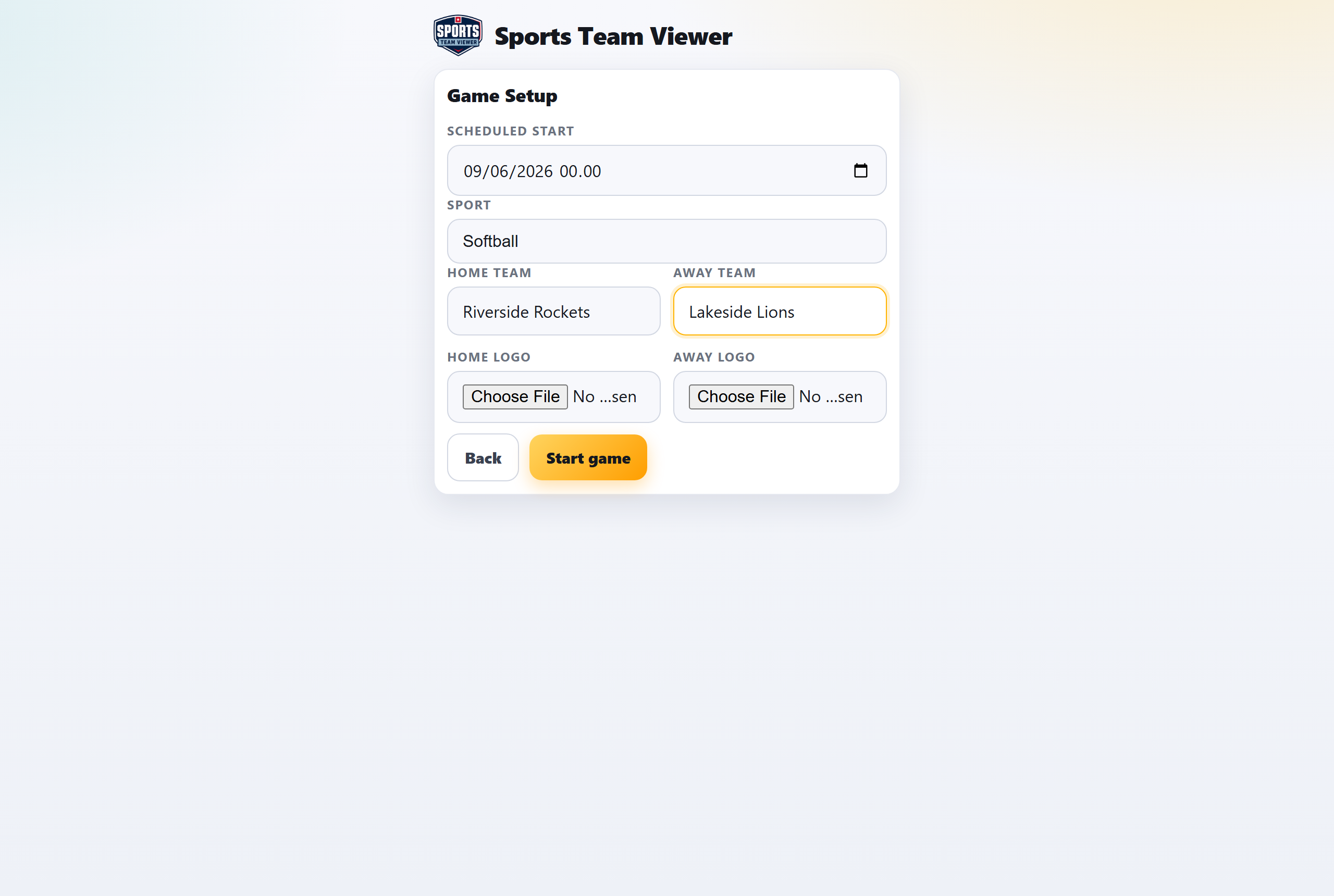
Setting the sport, team names, and logos. - Run the game. Use the score and clock controls to keep the scoreboard up to date. Every change shows up on the filmed video — and for anyone watching online — within a second or two.
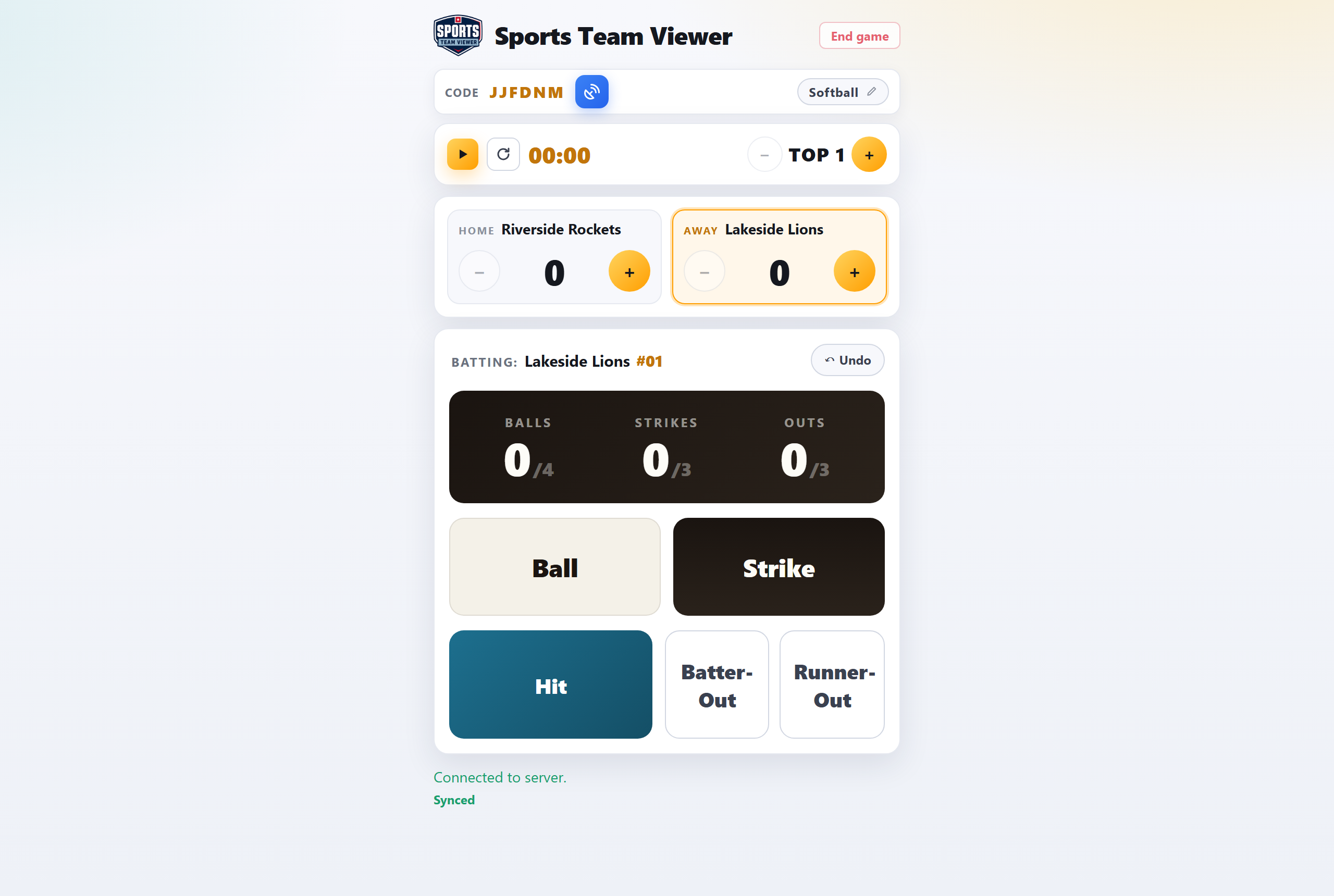
The control screen — adjust score, clock, and period here.
🎛 Want to know what every button does — balls, strikes, outs, Undo? Read How the controller works.
2 · Assign a camera
Cameras are already mounted and waiting at the field (see Setting up a camera above) — assigning one to this game takes a few taps on the website. Nobody needs to go near the phone.
- Tap the camera icon. On the game’s control screen, tap the video-camera icon. It reads your browser’s location and lists nearby idle cameras, closest first, each with a green dot if it’s online.
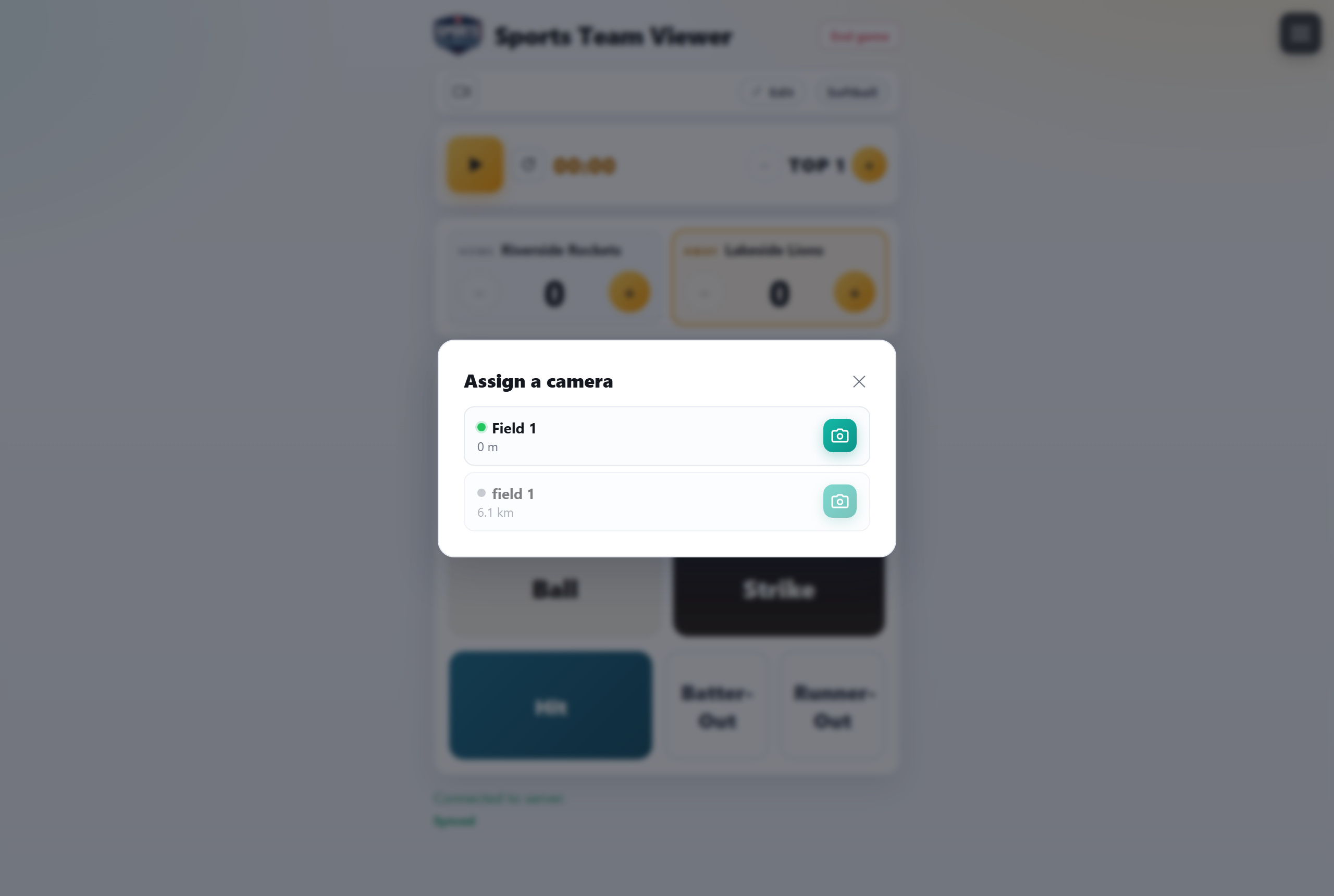
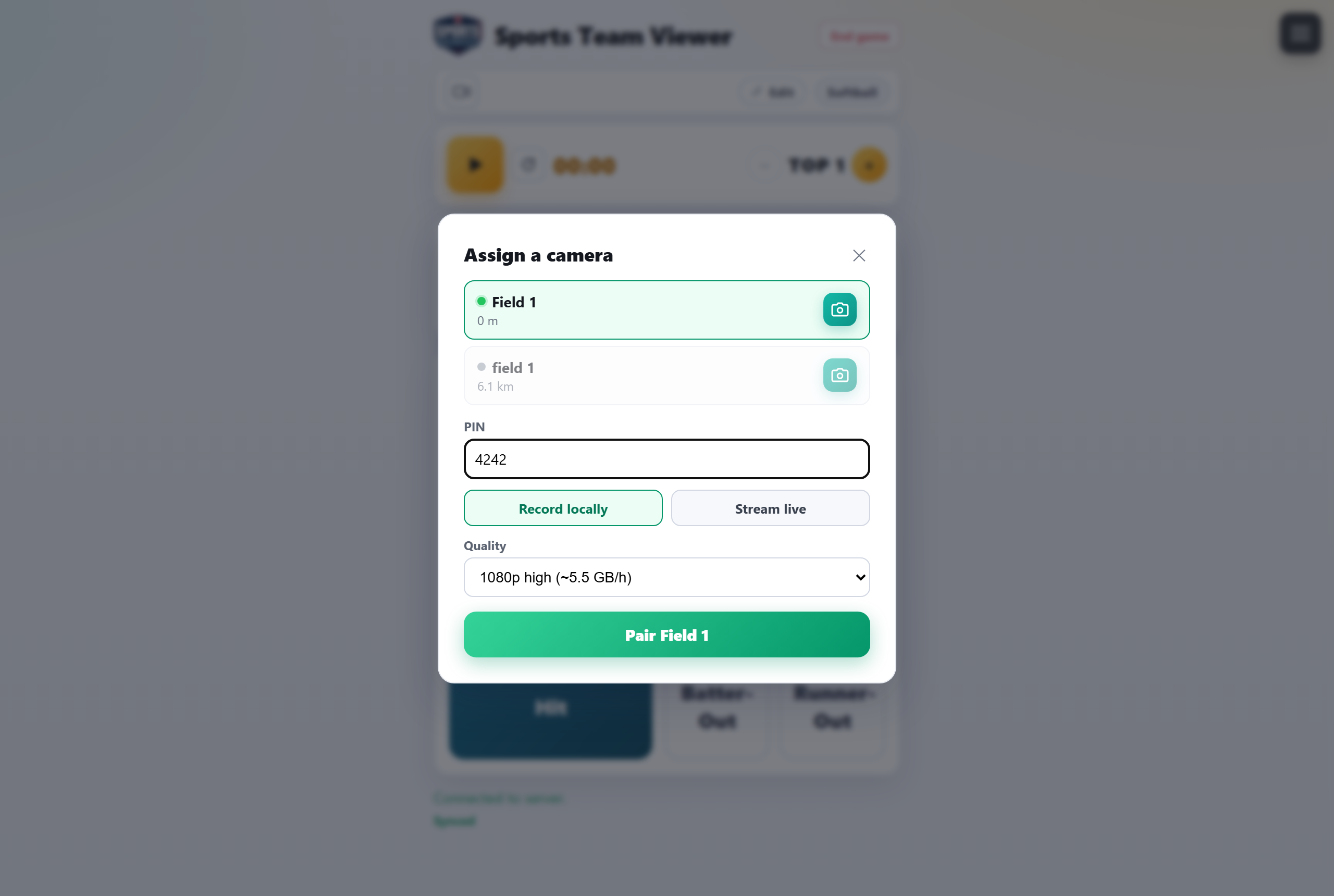
The camera picker — nearby idle cameras, sorted by distance. - Pick one and enter its PIN. Choose a camera, type in the PIN that was set when it was mounted, and choose record only or stream + a quality. Tap Pair.
Entering the camera’s PIN and choosing record vs. stream. - Check the framing. Tap the preview button next to the camera to pull a fresh snapshot from it, so you can confirm it’s aimed at the field before kickoff.
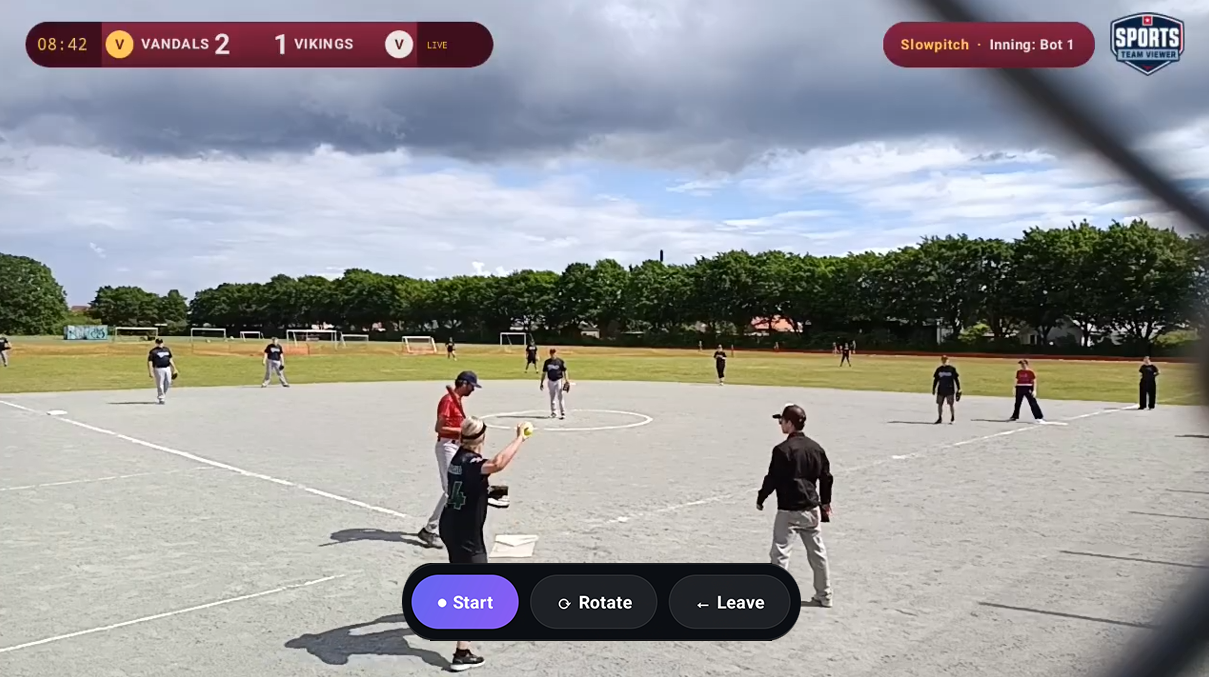
A live snapshot from the camera, so you can confirm its framing. - Start the game clock. The moment you start the clock on the scoreboard, the camera starts recording (and streaming, if you chose that) entirely on its own — there’s nothing to tap on the phone.
💡 Keep field cameras on power and mounted with a clear, steady view — Android pauses the camera if it’s ever moved to the background or the screen sleeps, though a mounted, always-on phone won’t hit that.
Check battery and storage on the Devices page before a long tournament day. If storage is getting tight, free up space on the phone — high-quality video can fill it up fast.
3 · Go live
There’s no separate handshake to go live any more — streaming is just a choice you make when you assign the camera.
- Choose “stream” when assigning. In the camera picker, pick stream + a quality instead of record-only, then tap Pair.
- It goes live on its own. Once the game starts, the camera requests its own slot on YouTube and starts broadcasting — with the scoreboard baked in — while still saving the recording locally too.
- Share the link. Grab the watch link from the game so friends and family can follow along from anywhere.
Youth & under-18 games
Filming children and young people comes with extra responsibilities. We do not encourage live, public streaming of games involving players under 18. Recording the game to keep and share within your club is fine — but for youth sport, please choose record only when assigning the camera, and keep it to a recording.
👧 Before you film or stream an under-18 game, please read Recording youth & children under 18 — our summary of the Danish Sports Confederation (DIF) guidance, and what we recommend.
Troubleshooting
- The camera I want isn’t showing up in the list.
- Make sure it’s powered on and connected to the internet, and that it’s been approved on the Devices page and given a spot. Only idle (unassigned) cameras appear, sorted by real distance from your browser’s location.
- It says the PIN is wrong.
- The PIN was set when that camera was mounted and is never shown on the phone again — check with whoever installed it. It can be reset from the phone itself (long-press the spot name on its idle screen).
- The scoreboard isn’t updating on the video.
- Changes take a second or two. If it’s longer, check both the camera and your browser have internet, and that this camera is actually paired to the game you’re editing — not a different one.
- The recording didn’t start.
- Recording starts automatically the moment you start the game clock on the scoreboard. Check the camera shows itself as paired to the right game rather than sitting on its “Waiting for a game” screen.
- The phone warns about low storage.
- Free up space before a long game — high-quality video adds up. Battery and storage for every camera are also visible on the Devices page, so you can check before a tournament day.
Still stuck? Email support@sportsteamviewer.com.