
How the controller works
The controller is the scoreboard you run from your phone, tablet or laptop during the game. Every tap shows up on the video and for everyone watching online within a few seconds. Here is what each button does.
The screen at a glance
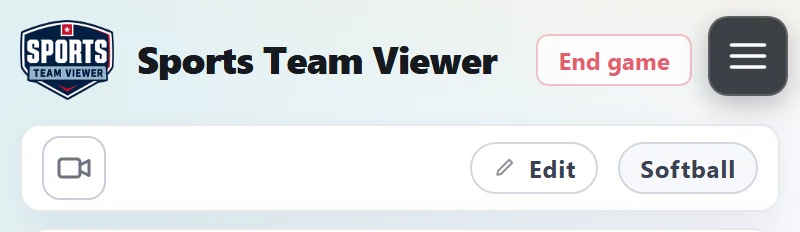
This is the control screen for a softball, baseball or slowpitch game. Baseball5 and soccer look a little different — see the end of this page.
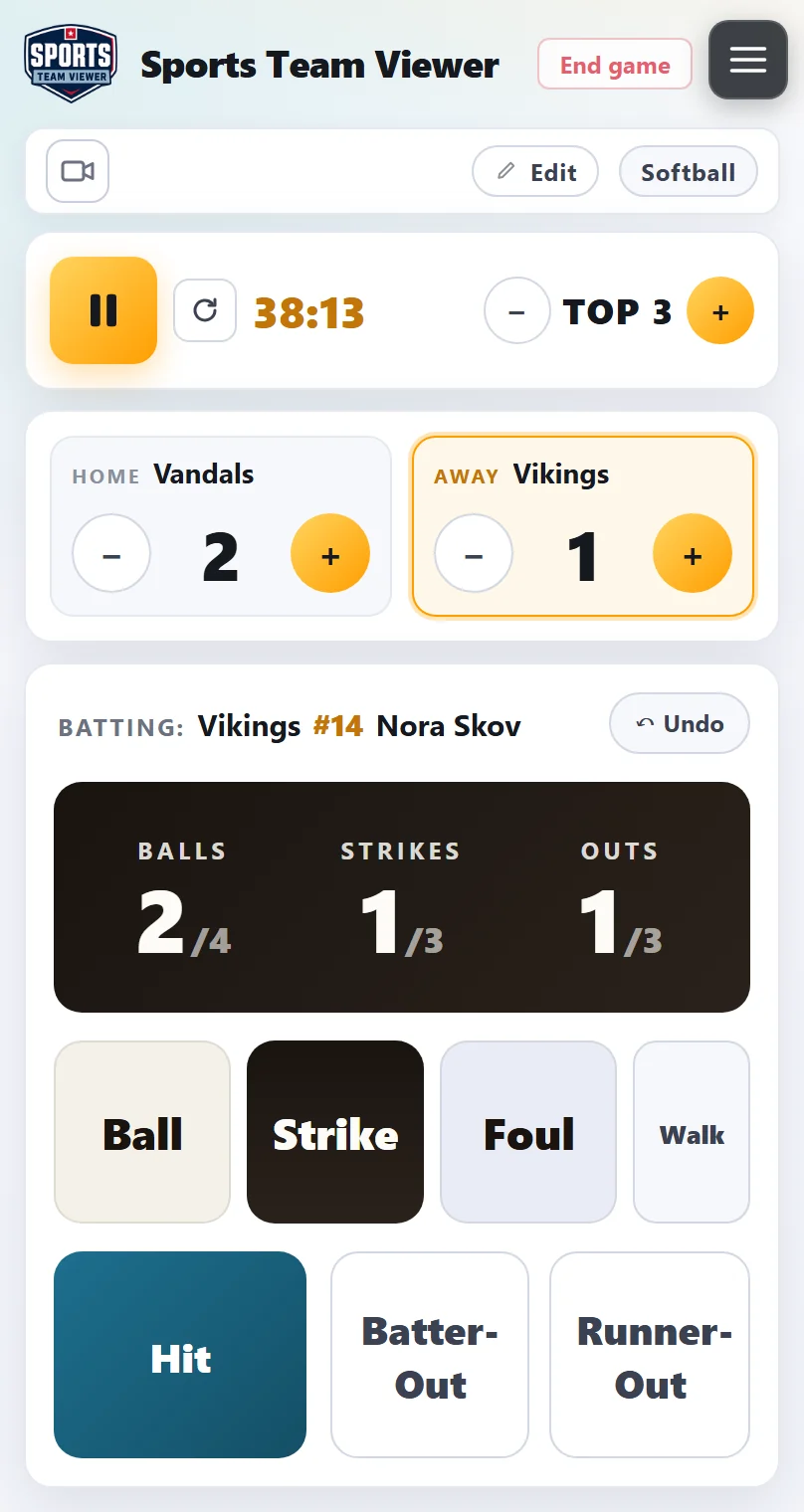
- End game — ends the game for good. Use it when the game is over.
- Camera, Edit and sport. Assign a camera, and change team names, lineups and other settings.
- Clock and inning — start and pause the clock, and step the inning.
- Runs — the score for each team. The team at bat is highlighted.
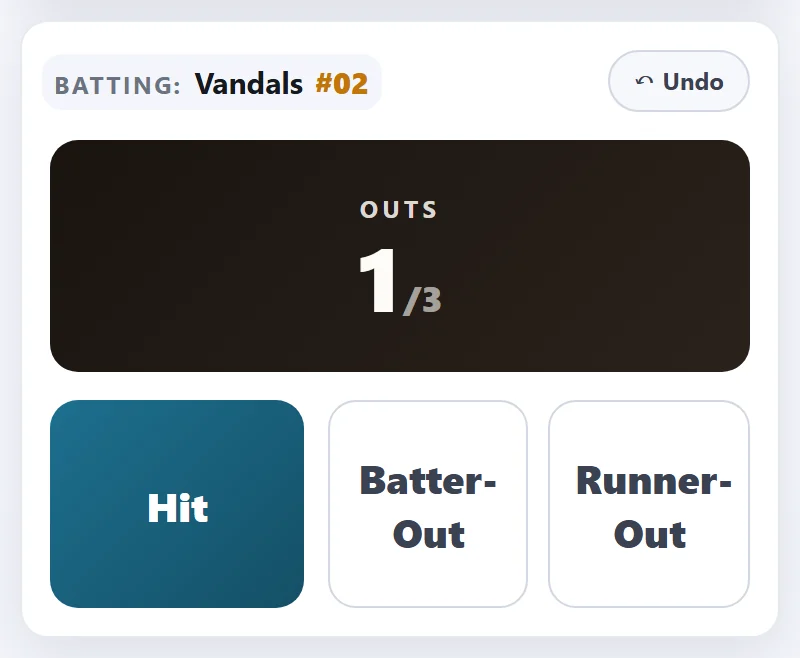
- Who's batting and the ↶ Undo button.
- The count — Balls, Strikes and Outs. Tap a number to correct it.
- Pitch buttons — Ball, Strike, Foul and Walk.
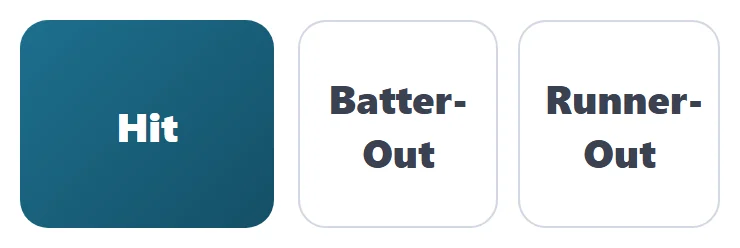
- How the at-bat ended — Hit, Batter-Out or Runner-Out.
Clock and inning
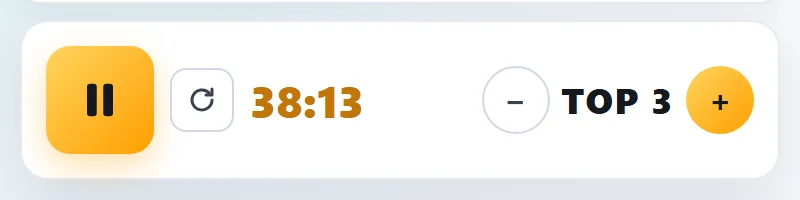
- ▶ starts the clock. Starting it the first time also starts the camera recording (and the live stream, if you chose that) — so press it when the game begins.
- ❚❚ pauses it and ▶ carries on from the same time. The clock shows minutes and seconds, and hours too after the first hour.
- ⟳ resets the clock to 00:00. It asks first, so you can't hit it by accident.
- TOP / BOT and the − + buttons show and change the half-inning. You rarely need them: after the third out the controller moves to the next half-inning by itself. Use them if you're catching up or something went wrong.
Runs
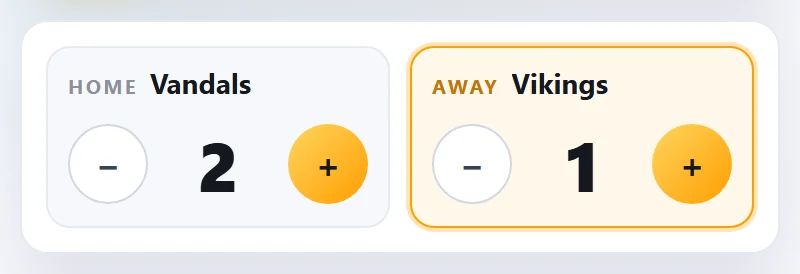
Each run is one tap on + for the team that scored. Runs are not added automatically — not even for a home run — so remember to tap + for every runner who crosses home plate.
The team at bat has an orange frame: the away team bats in the top of the inning, the home team in the bottom.
Tapped + once too often? Tap − to take the run back off.
Pitch by pitch
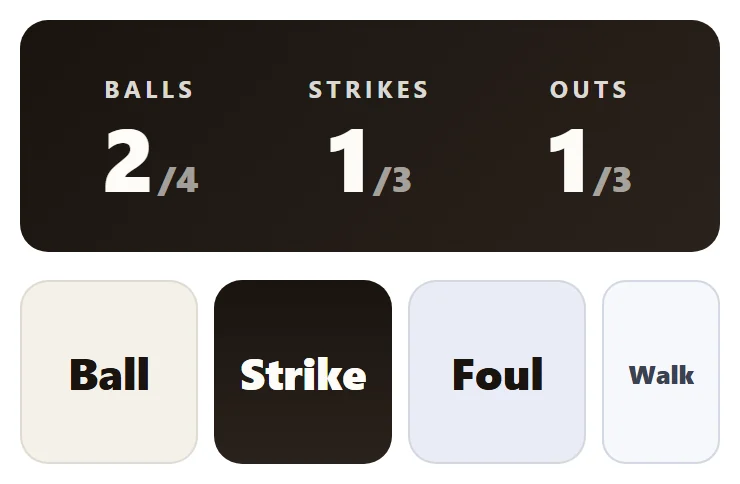
Tap a button after every pitch. The big numbers show the count, and the controller takes care of what happens next:
- Ball adds a ball. The fourth ball is a walk: the count resets and the next batter steps in.
- Strike adds a strike. The third strike is a strikeout: one more out, and the next batter steps in.
- Foul is a strike as long as the batter has fewer than two strikes. With two strikes, the count stays in softball and baseball. In slowpitch, a foul with two strikes is strike three.
- Walk sends the batter to first right away — for a hit by pitch or an intentional walk — without tapping four balls.
In Softball U12 no balls are counted, so Balls and Ball are greyed out.
Hit and outs
When the at-bat ends with the ball in play, tap one of the three big buttons:
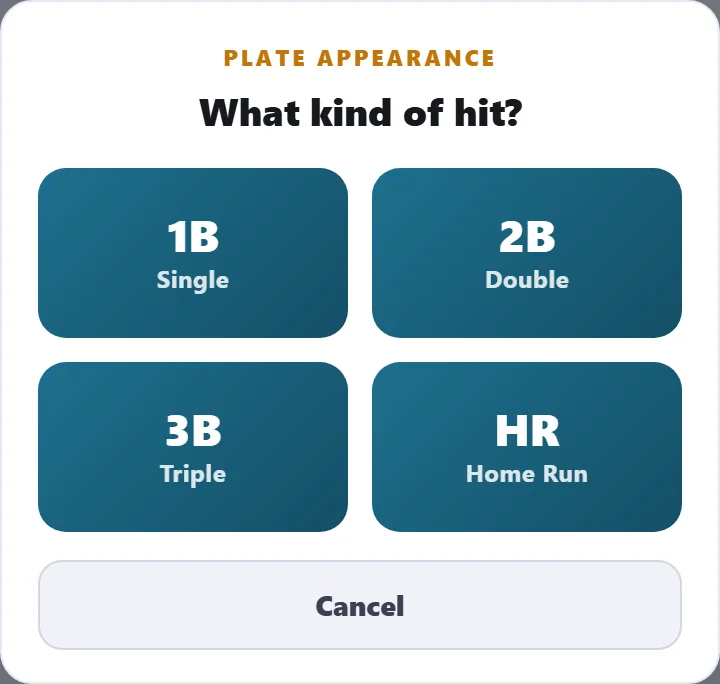
- Hit opens a choice: single (1B), double (2B), triple (3B) or home run (HR). Pick one and the next batter steps in. Remember to add any runs with +.
- Batter-Out — the batter is out (caught fly ball, thrown out at first). One more out, next batter.
- Runner-Out — a runner is out on the bases (caught stealing, picked off). One more out, but the same batter stays with the same count.
On the third out the side is retired: the count resets and the inning moves on automatically.
Undo — when you tap the wrong button
↶ Undo takes back your last tap. Tap it again to go further back, one step at a time. It undoes everything — a ball, a strike, a hit, an out, even the inning change after a third out.
Undo remembers the taps made on this device since you opened the game. If you reload the page or switch device, it starts empty. Then fix the count by tapping the number (see below), and runs with −.

Fixing the count
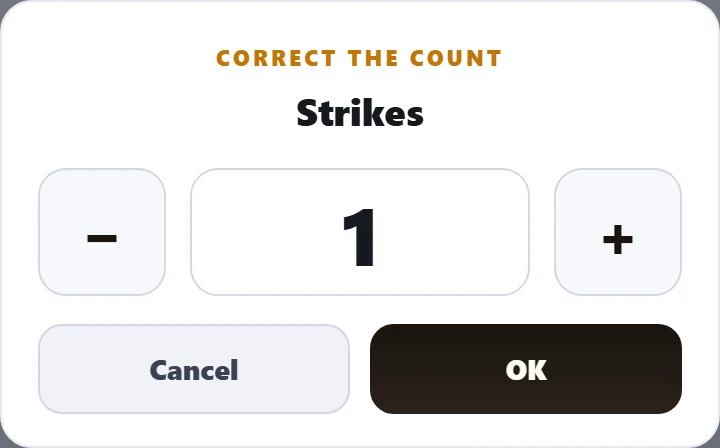
Tap the Balls, Strikes or Outs number in the dark box. A small window opens: use − and + (or type the number), then OK.
You can set up to 3 balls, 2 strikes and 2 outs here. The fourth ball, third strike or third out must go through the normal buttons, so the walk, strikeout or inning change is recorded properly. Undo also undoes a correction.
Who's batting
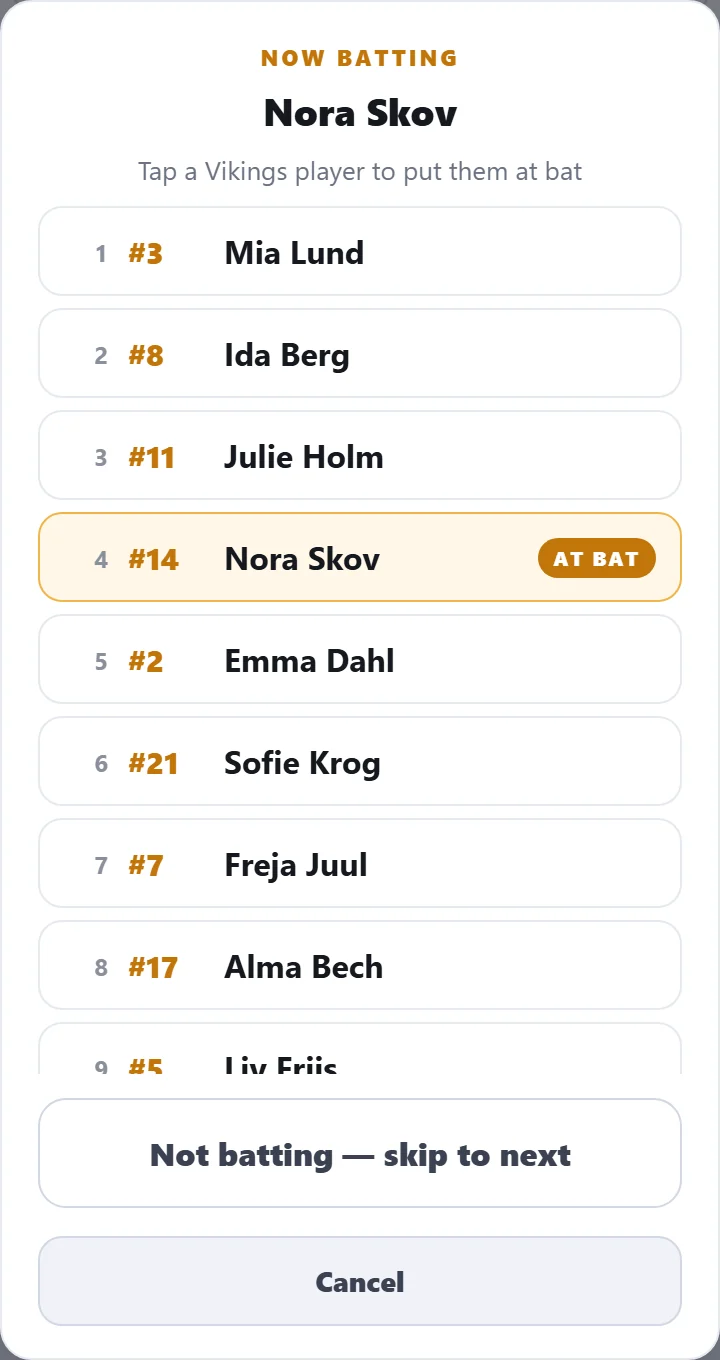
The line at the top of the panel shows the team at bat and the current batter. Tap it to see the whole batting order and tap a player to make them the batter — the order then continues from that player.
Not batting — skip to next skips a batter who is absent or injured, just this once.
Names come from the lineup. Add it before the game with Edit → Add lineups. You can type it, or use Scan photo to read a photo of the lineup sheet. Without a lineup the batters are numbered #01, #02 and so on. Each team's order continues across innings.
Ending the game
Tap End game at the top and confirm. The game is locked, the camera stops, saves the recording and goes back to waiting for the next game.
After the last third out the controller has already moved on to an empty half-inning. Don't worry: when you end the game, the final scoreboard shows the last inning that was actually played.
What happens to the video afterwards is on the game day checklist.
Baseball5
Baseball5 has no pitcher, so there are no balls, strikes, fouls or walks — only Outs. You use Hit, Batter-Out (also for an illegal hit) and Runner-Out just like in softball, and runs with +. A game is five innings; the inning simply carries on if it's tied.
Soccer
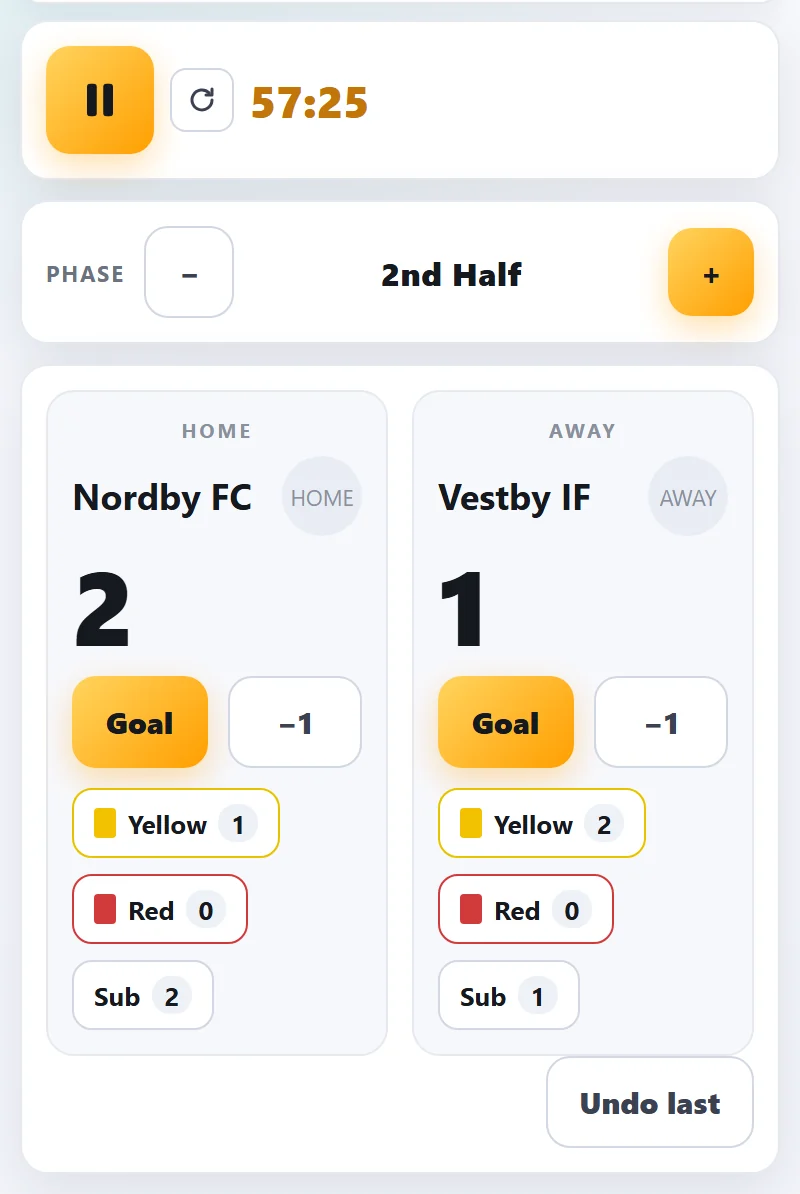
- Phase − / + steps through the match: 1st half, half time, 2nd half, full time, extra time and penalties. Moving on sets the clock to the right start, e.g. 45:00 for the 2nd half.
- Goal adds a goal. −1 takes one back if you tapped too often.
- Yellow, Red and Sub count cards and substitutions for each team. Cards can be turned off with Edit → Enable red/yellow cards.
- Undo last removes the last goal, card or substitution — this one works even after a reload.
Good to know
- The screen stays on by itself while the game is open, in most browsers. If your phone still locks, turn off auto-lock during the game.
- Lost connection? If a tap can't be sent, the controller takes it back on screen and shows Could not record that play — check connection.. Tap it again when you have signal. Synced at the bottom means everything has been sent.
- Everyone sees it live. Changes reach the video and the online scoreboard within a few seconds.
- Wrong team name or sport? Fix it with Edit, even during the game.